

How to import recipes on your computer
On a computer, the CookZone browser extension does what the share menu does on your phone. Open the post with the recipe, click the extension, and the recipe lands in your collection.
Install the CookZone extension for Chrome or Firefox. Open the post, click the CookZone button in your toolbar, then “Import Recipe”.
Updated
Step by step
-
Install the extension
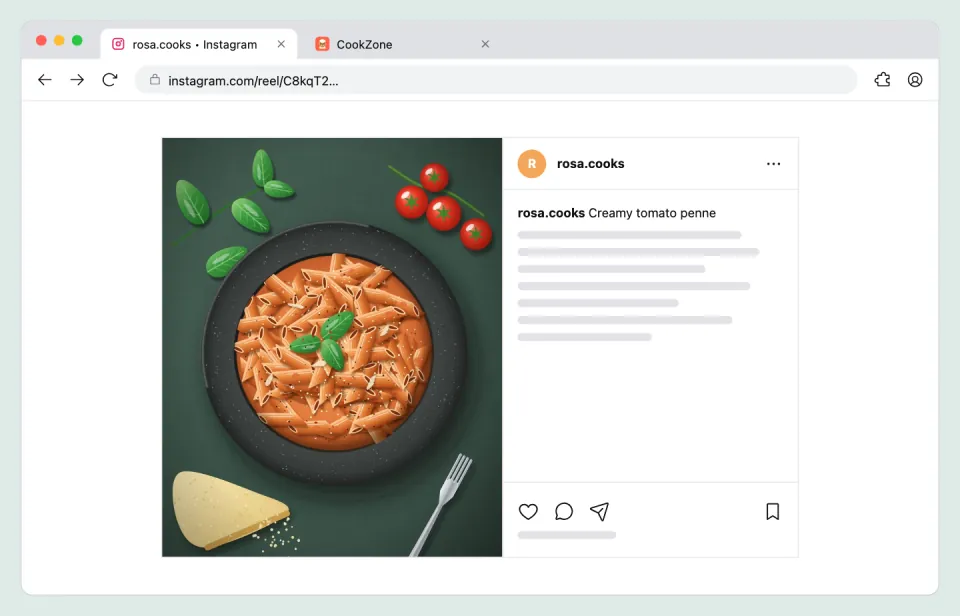
Install CookZone for your browser. Then open the post or video with the recipe.
-
Pin it to your toolbar
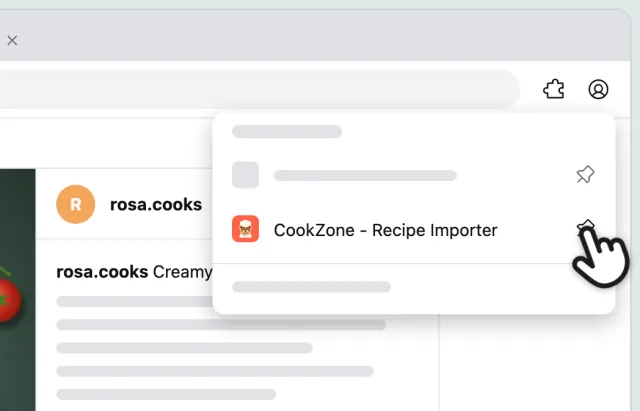
Click the puzzle piece, then the pin next to CookZone. In Firefox, click the gear next to CookZone and “Pin to Toolbar”. You only do this once.
-
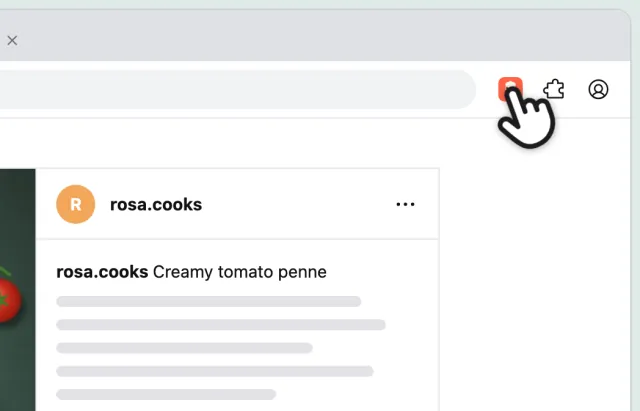
Click the CookZone button
Click the CookZone button in your toolbar.
-
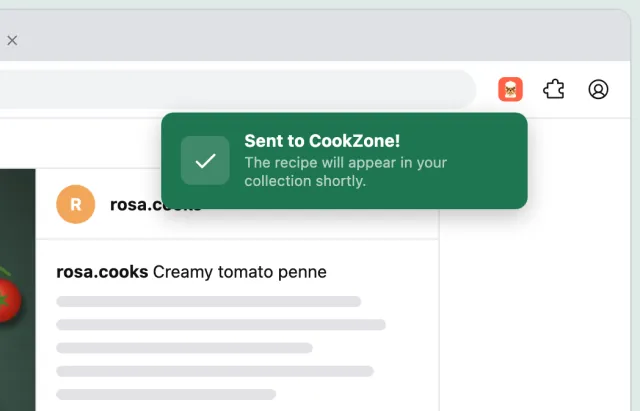
Click “Import Recipe”
Click “Import Recipe”. When it says “Sent to CookZone!”, you’re done here.
-
Done
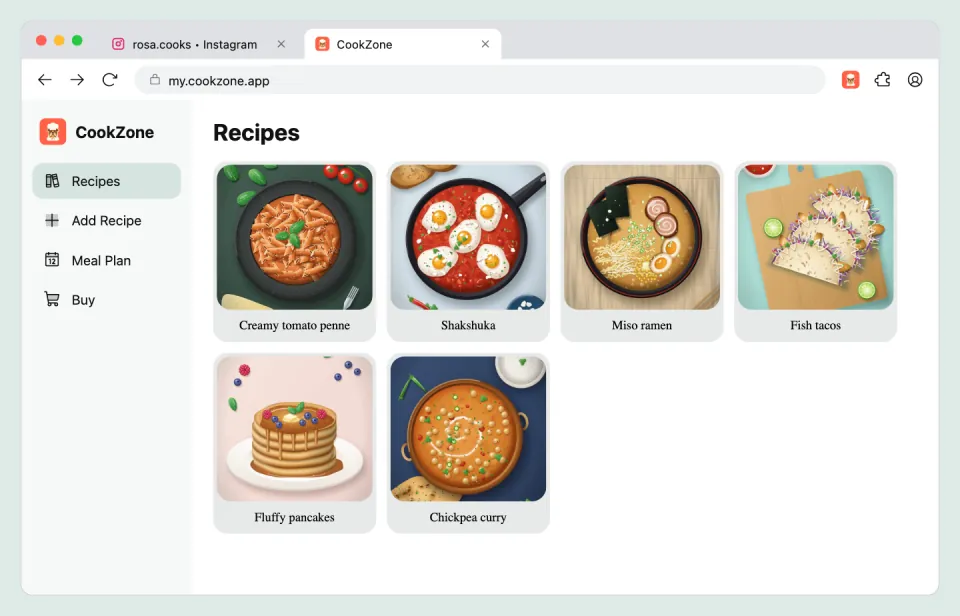
CookZone opens in your browser, and the recipe appears in your collection a moment later.
Recipe websites don’t need the extension
Open CookZone in your browser, click “Add”, choose “URL” and paste the page’s address.
Which browsers?
The extension is for Chrome and Firefox on a computer. In Safari and on phones, share the post to the CookZone app instead.